Staff User Guide
For teachers, registrars and school admins: how you get your EduLink account, how to activate it with the SMS code, how to sign in, and the everyday work for each role.
Start here: the four steps
Your school admin does the first two steps. You do the rest.
- School adminCreates your accountWith your name, username, phone number and role.
- School adminSMS is sentYou get a 6-digit code at once. It lasts 24 hours.
- YouActivate, onceEnter your phone, the code and a new password.
- YouSign inWith your username or phone and your password.
Your role
Every staff account has one role. The role decides which pages you see in the menu. Ask your school admin if you need a different role.
| Role | Main work in EduLink |
|---|---|
| Teacher | Take attendance for your classes, write the class journal and homework, enter scores, message students and parents. |
| Registrar | Register students, put them in classes, add parents and guardians, send student and parent invitations. |
| School admin | Everything a registrar does, plus staff accounts, classes and teaching assignments, timetable, grading, attendance settings and announcements. |
| Attendance officer | Correct past attendance, review absence reasons, record teacher attendance, help with the timetable. |
Parents and students have their own guides: Parent Guide and Student Guide. Share them with families.
Before you start
- Your mobile phone number, given to your school admin. The activation code comes to this number.
- Your username, chosen by the school admin when they create your account. Ask them for it.
- A computer is best for registrar and admin work (long lists and forms). Teachers can also take attendance on a phone.
- Your region's EduLink address. For Dire Dawa it is dire.edulinkschool.com.
How you get an account
Staff cannot sign up themselves.
- The school admin is created by the EduLink region office when the school is set up. The activation SMS goes to the admin's phone.
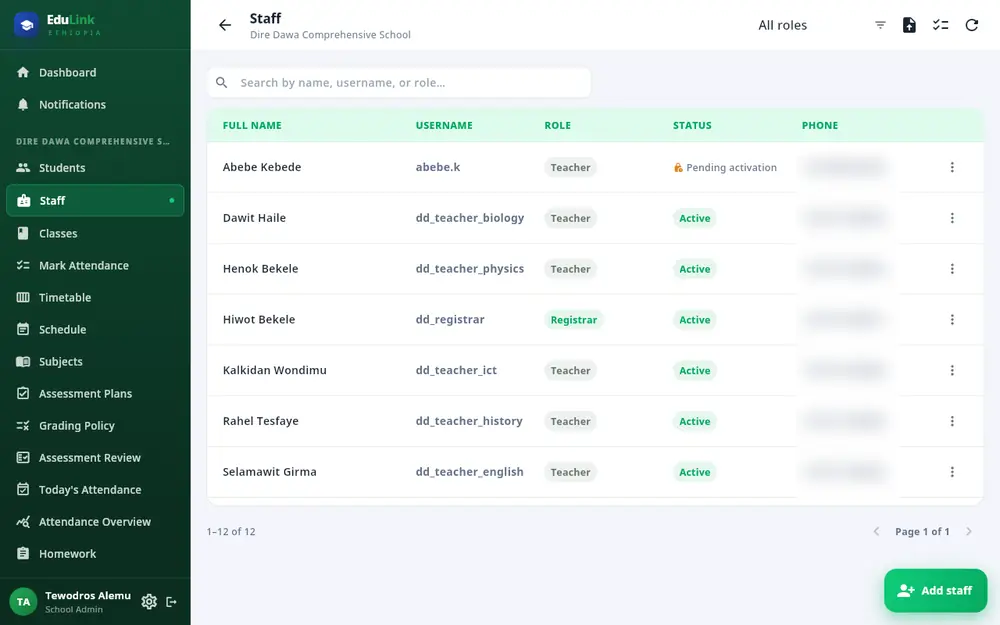
- All other staff are created by the school admin, on the Staff page: one at a time with Add staff, or many at once with Import CSV.
Whether the admin adds you by hand or from a spreadsheet, your activation code is sent the moment your account is created. (Students are different: they get nothing from a spreadsheet upload until the registrar invites them.)
A new teacher can sign in straight away, but sees no classes until the school admin gives them a teaching assignment.
Activate your account (one time)
The SMS looks like this (it may be in your language):
Your EduLink activation code: ****** Go to https://…/staff-activate and tap 'Activate Staff Account'. Expires in 24 hours.
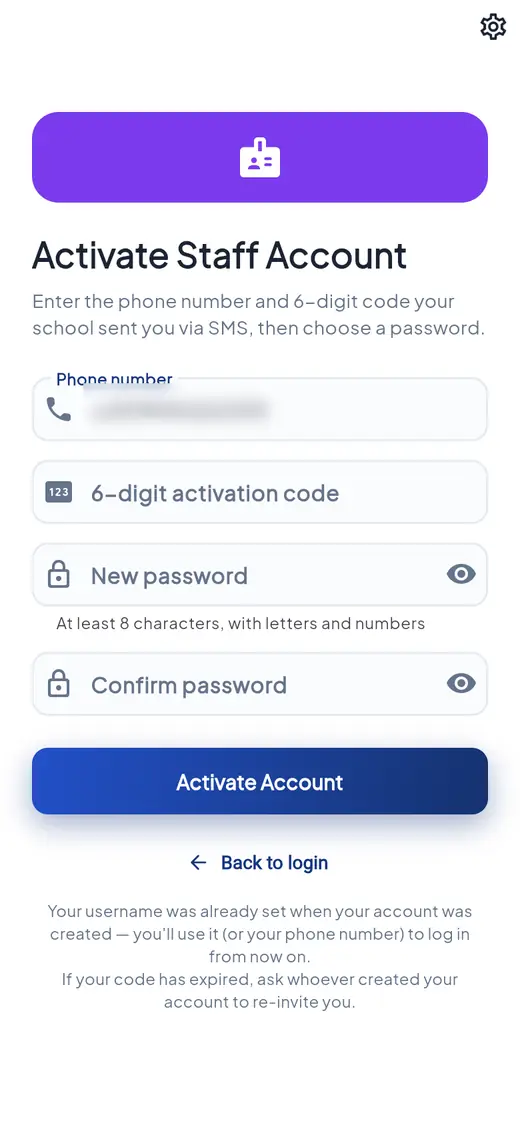
- Tap the link in the SMS. The Activate Staff Account page opens with your phone number filled in.
No link? On the sign-in page, under New staff or school admin?, tap Activate your account with the SMS code. - Type the 6 digits in 6-digit activation code.
- Type a New password (at least 8 characters, with letters and numbers) and the same in Confirm password.
- Tap Activate Account. You see "You're activated! Signing you in…" and your dashboard opens.
There is no username box: your username was set when your account was created. You can sign in with it or with your phone number.
Staff pages have no Resend button. Ask your school admin: on the Staff page they open the ⋮ menu next to your name and choose Resend activation code.
Sign in and move around
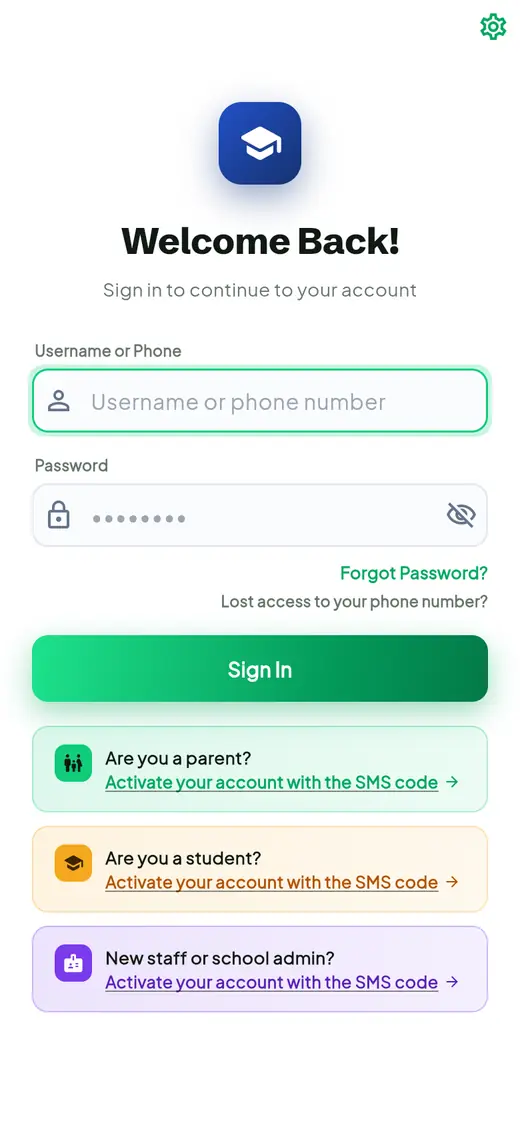
- Open your region's EduLink address, for example dire.edulinkschool.com.
- Type your username (or phone number) and password.
- Click Sign In. Your dashboard opens.
If your school admin has just reset your password, EduLink first asks you to choose a new one.
The menu
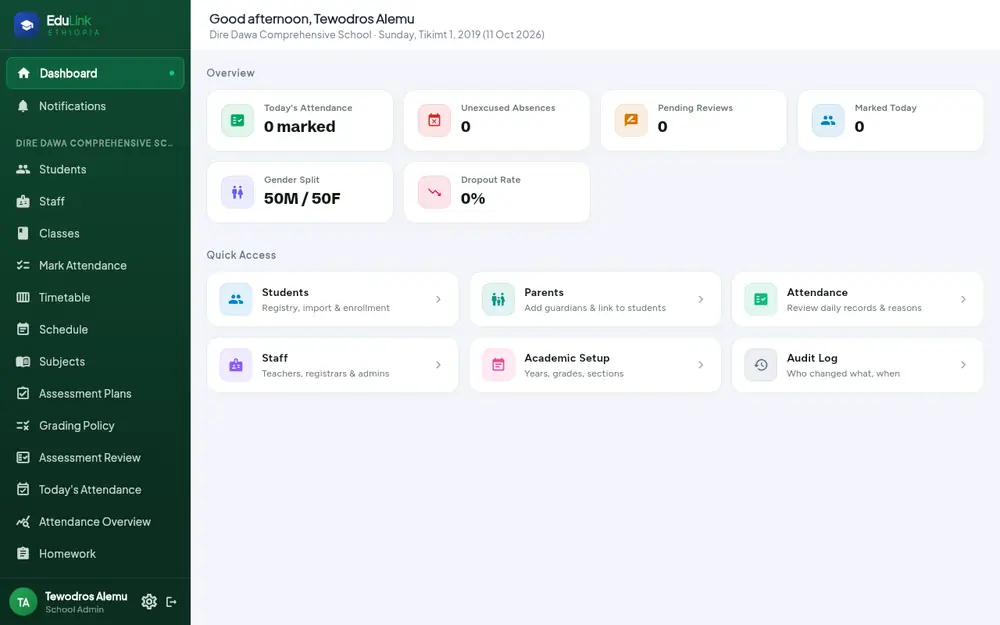
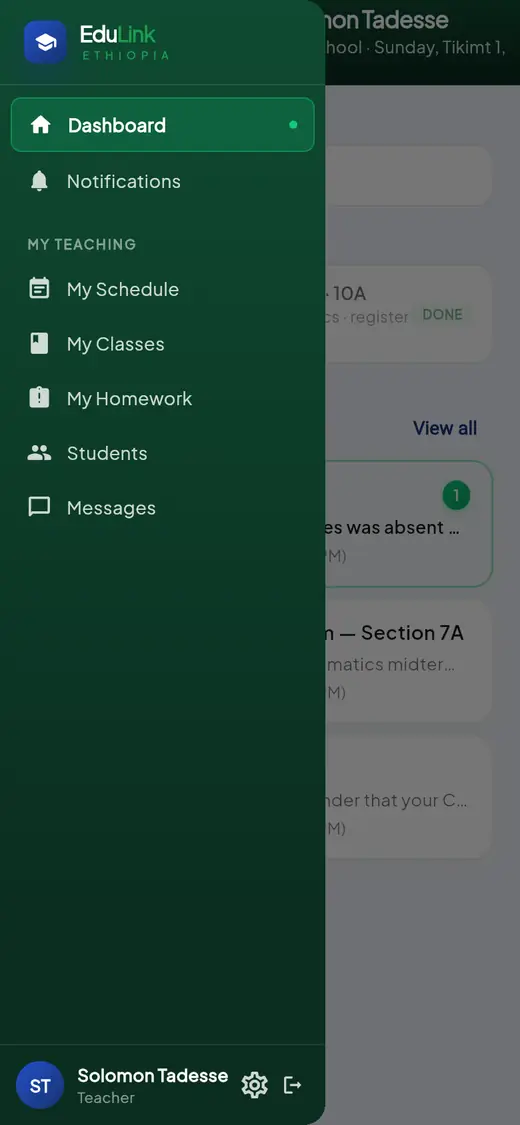
- On a computer the menu is always on the left. It shows only the pages your role can use.
- On a phone tap the three lines (top left) to open it.
- At the bottom: your name and role. Click your name to change your password. The gear changes the language. The exit arrow signs you out.
For teachers
Your menu has Dashboard, Notifications, My Schedule, My Classes, My Homework, Students and Messages. Tap a topic to open it.
Your day: the dashboard
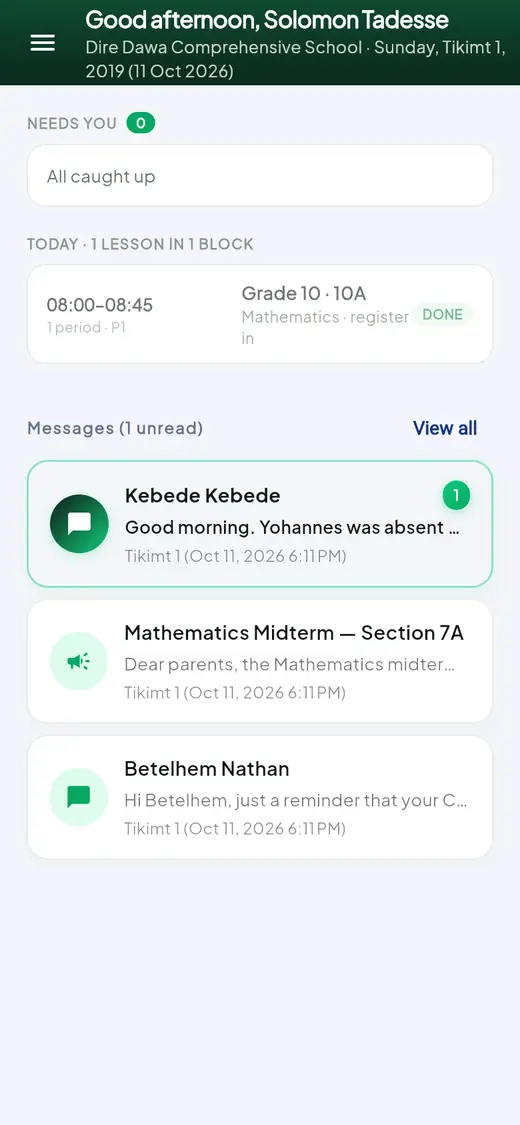
- Today lists your lessons with time, class and subject. DONE means the register for that lesson is in.
- Needs you counts things waiting for you.
- Your newest Messages are below.
"No lessons scheduled today" means the timetable has nothing for you today. If that is wrong, ask your school admin to check your teaching assignments and the timetable.
Take attendance (the register)
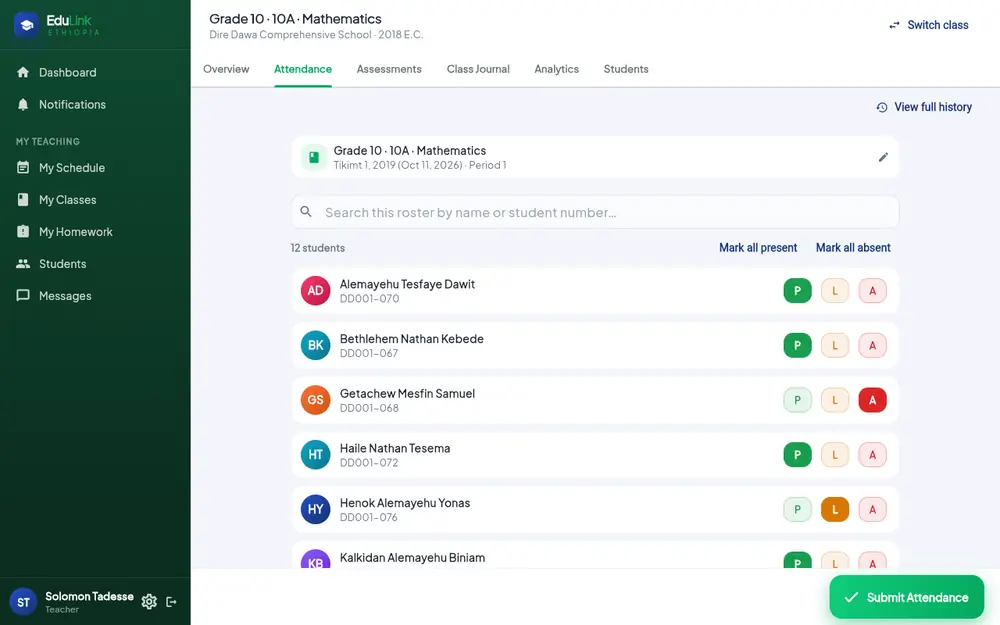
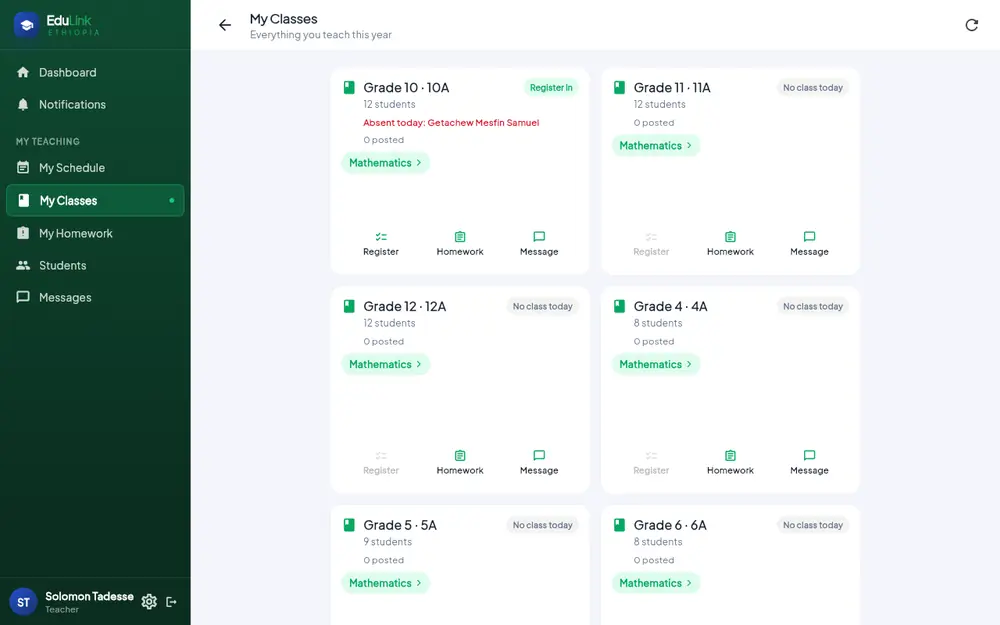
- Open My Classes. Each card is one class you teach. Click the subject (for example Mathematics), or Register when the class is on today.
- Open the Attendance tab. Check the class, date and period at the top.
- Everyone starts as P (present). Tap L for late or A for absent. Mark all present and Mark all absent help with big classes.
- Click Submit Attendance. If you have not started the class yet, EduLink asks "Start this class first?": click Start class.
- You see "Class started and attendance saved".
Teachers mark today's attendance only. To correct an earlier day, ask your attendance officer or school admin. If the class is not on the timetable for that date and period, EduLink will not accept the register: ask an admin to add it to the timetable.
When you mark a student absent or late, EduLink sends an SMS to the student's parents and guardians, and they can submit a reason.
Class journal and homework
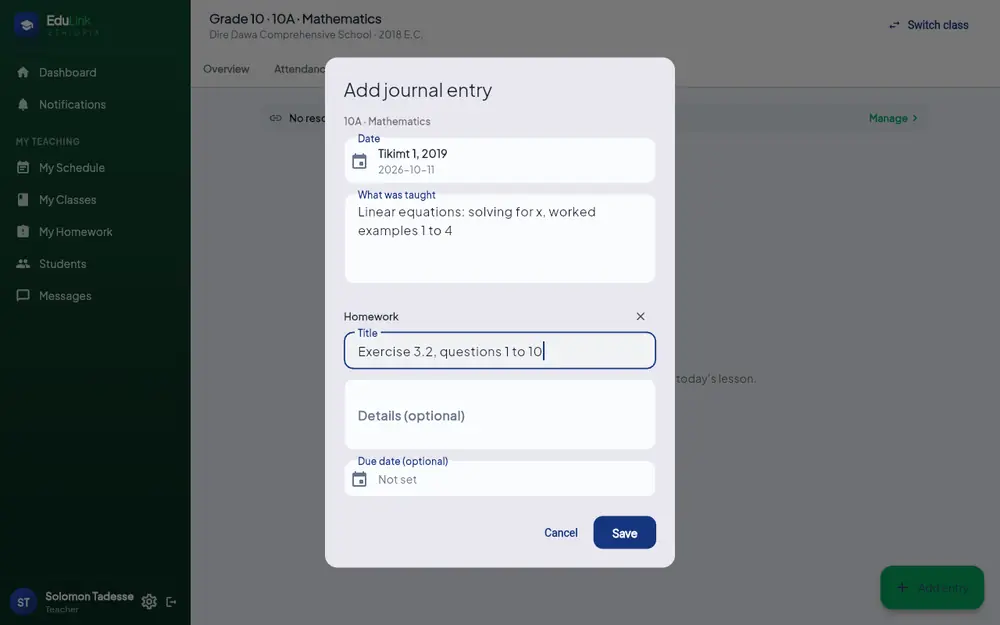
- In your class, open the Class Journal tab and click Add entry.
- Check the Date, and write What was taught.
- To set homework, click Add homework: give a Title, optional Details and a Due date.
- Click Save. You see "Journal entry saved". Students and parents now see it in their Homework and Lesson Diary.
Each homework item has buttons to view submissions, edit or delete it. My Homework in the menu lists everything you have posted.
Enter scores
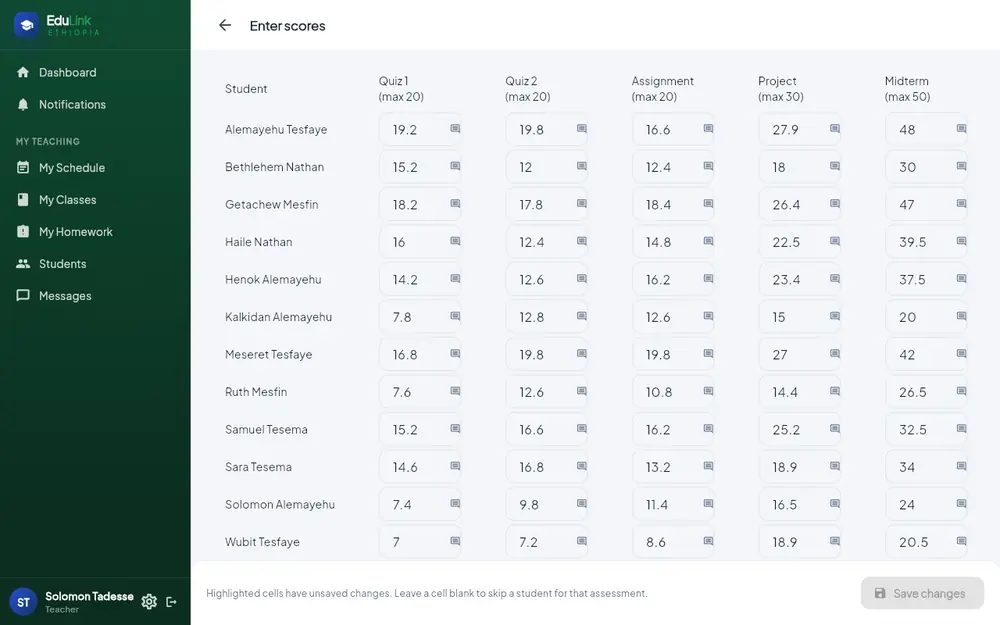
- In your class, open the Assessments tab and choose the Term.
- The assessment plan lists each assessment (quiz, test, exam) with its maximum marks and weight. When the plan is ready, click Enter scores.
- Type each student's mark. Changed cells are highlighted. Leave a cell blank to skip a student.
- Click Save changes.
Report cards are published by the school, not by each teacher.
Messages to students and parents
- Messages in the menu shows all your conversations.
- Each class card in My Classes also has a Message button.
- In a class, the Overview tab has quick actions such as Message Parents.
For registrars
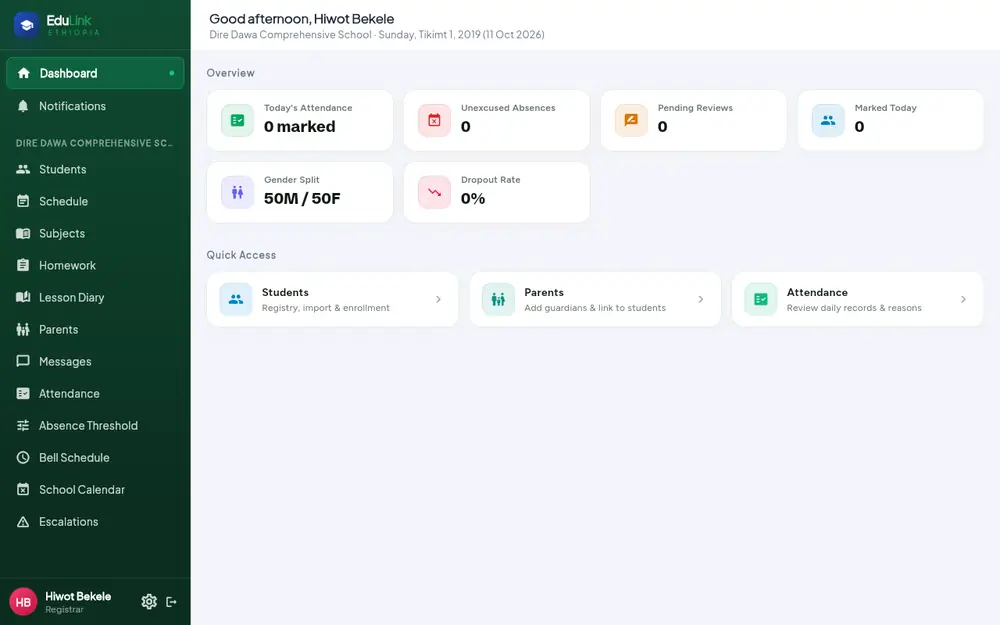
Your work is on the Students and Parents pages. School admins can do all of this too. Tap a topic to open it.
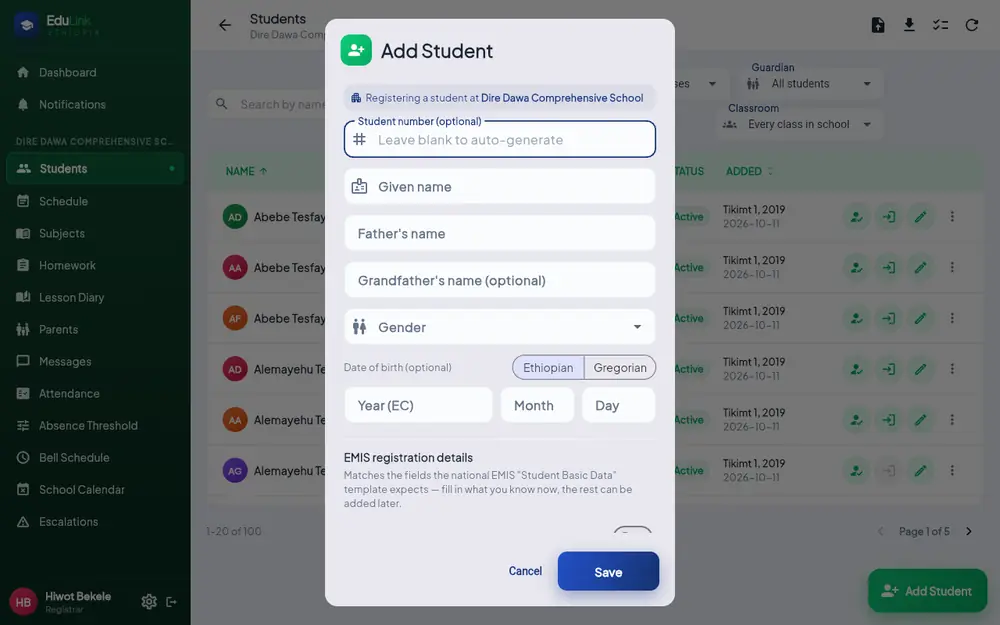
Register one student (and their parent)
- Open Students and click Add Student.
- Fill in the names and gender. Leave Student number blank to create one automatically. Date of birth and the EMIS details are optional now.
- Under Guardian (optional), type the parent's name, relationship and phone number, and choose their language. Typing a phone that is already on file reuses that parent.
- Click Save.
- Put the student in a class: click the Enroll in section button on the student's row.
The parent's activation SMS is sent as soon as you click Save.
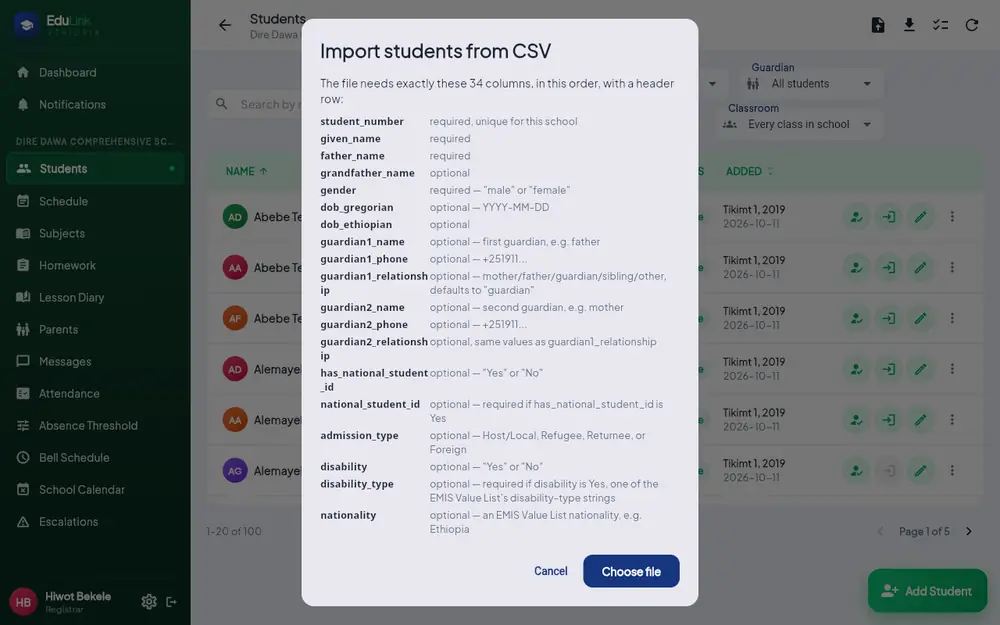
Register many students from a spreadsheet (CSV)
- On Students, click the Import CSV button (top right).
- The window lists the columns the file needs, in order. Click Copy template to get the header row.
- Fill one row per student, save as CSV, click Choose file.
Parents: the guardian1_… and guardian2_… columns add up to two parents per student, and each parent with a phone number gets the activation SMS automatically.
Students: there is no student phone column, so students get no SMS. For students in grade 7 and up who should use the student portal, add their own phone and send the invite (next topic).
Classes: the file does not put students in a section. Use Enroll in section afterwards.
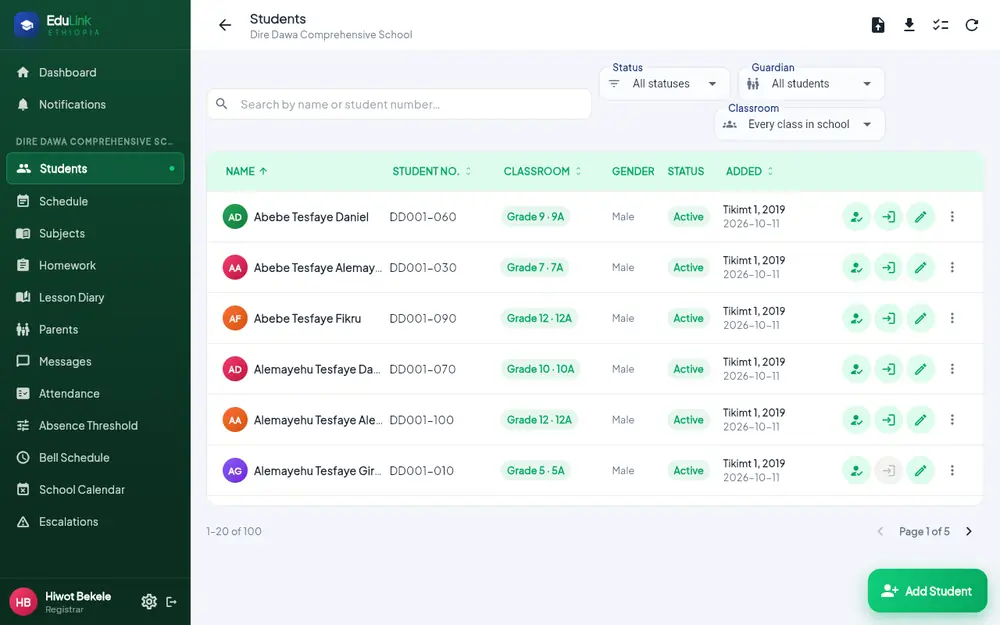
Invite students to the student portal (grade 7 and up)
- One student: click the Invite to student portal button on the student's row and enter the student's own phone number.
- Many students: click the select button (top right), tick the students, then Invite to portal. This uses the phone already on each student's record.
- The button is greyed out for grades below 7: "Student portal invites start at grade 7".
- The student's number must be their own, not a parent's.
The student then follows the Student Guide.
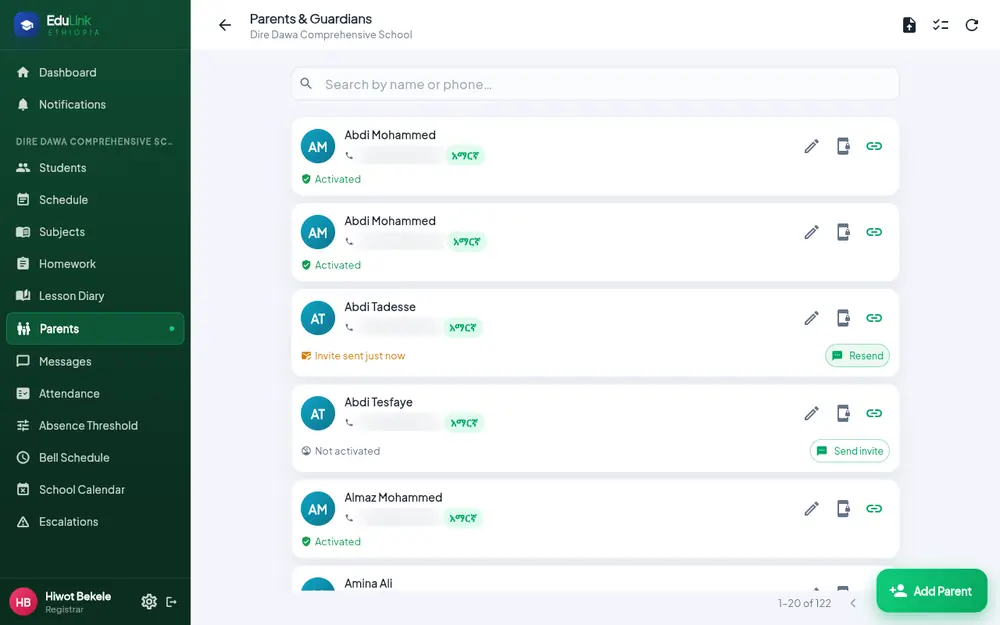
Parents & Guardians: invites, phone changes, links
- Each parent shows Activated, Not activated or Invite sent.
- Send invite sends the activation SMS. After that it becomes Resend.
- To invite many at once, use the select button (top right).
- Add Parent adds one parent. Import CSV links parents to existing students with the columns
student_number, guardian_name, phone, relationship; each new parent gets the SMS. - Row buttons: Edit guardian, Change phone number, Link to student.
- If a parent already has an EduLink account (another child, or another school), linking them sends no new code; they see the child next time they sign in.
- Change phone number (for a parent who lost their phone, in person with an ID): type the new number. A 6-digit code is sent to the new phone; the parent tells you the code and you type it to confirm. Then the parent uses Forgot Password?.
Parents then follow the Parent Guide.
For school admins
You have every registrar page plus the school setup pages. These are the staff tasks. Tap a topic to open it.
Add staff (one, or many from a CSV)
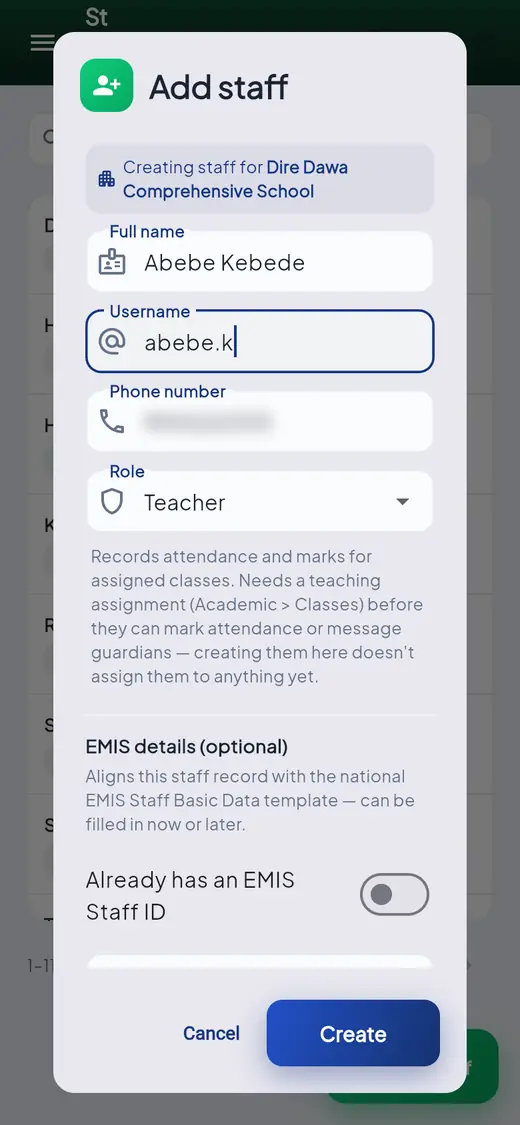
- Open Staff and click Add staff.
- Type the Full name, a Username (tell the person), their Phone number, and choose the Role. EMIS details are optional.
- Click Create. EduLink says: "We've texted them an activation code to set up their own password."
For many staff, click Import CSV on the Staff page. The columns are username, full_name, phone, role (plus optional EMIS columns). Each person gets the SMS.
The phone must be a valid Ethiopian mobile number, for example 09… or +2519….
Give a teacher their classes (teaching assignments)
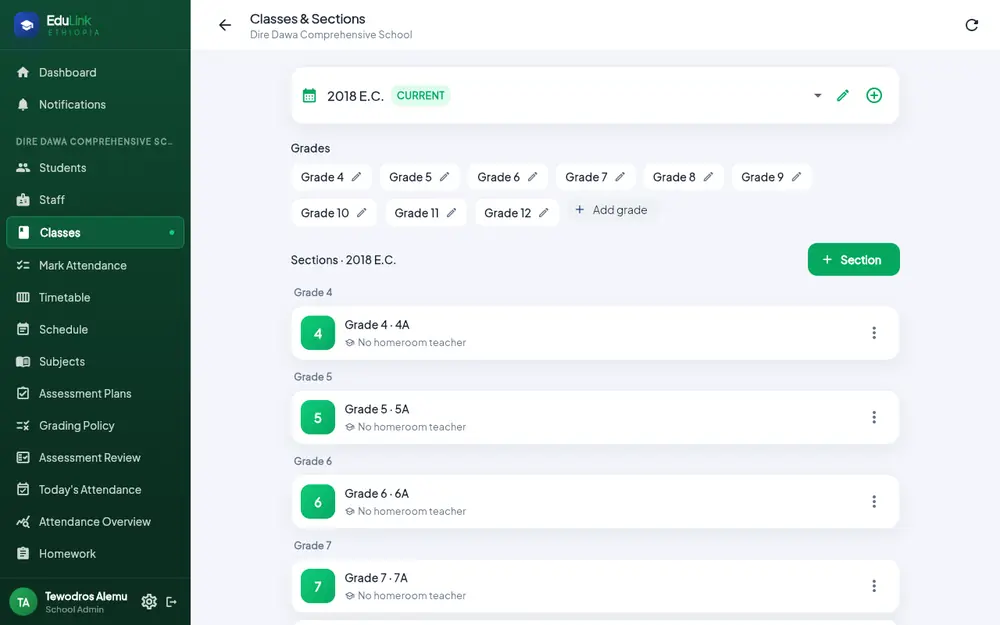
- Open Classes. Grades and sections are at the top.
- Scroll to Teaching Assignments and click Assign.
- Choose the teacher, the section and the subject, and save.
- Then add the lessons on the Timetable page. A teaching assignment says who teaches what; the timetable says when.
Until both are done, the teacher's My Classes and Today stay empty, and they cannot take attendance.
Resend a code, reset a password, suspend
On Staff, click the ⋮ button at the end of a person's row:
- Resend activation code: only for accounts still Pending activation. A new SMS code is sent.
- Reset password: see below.
- Edit: change name, phone, role or EMIS details.
- Suspend: the person can no longer sign in, and is signed out everywhere.
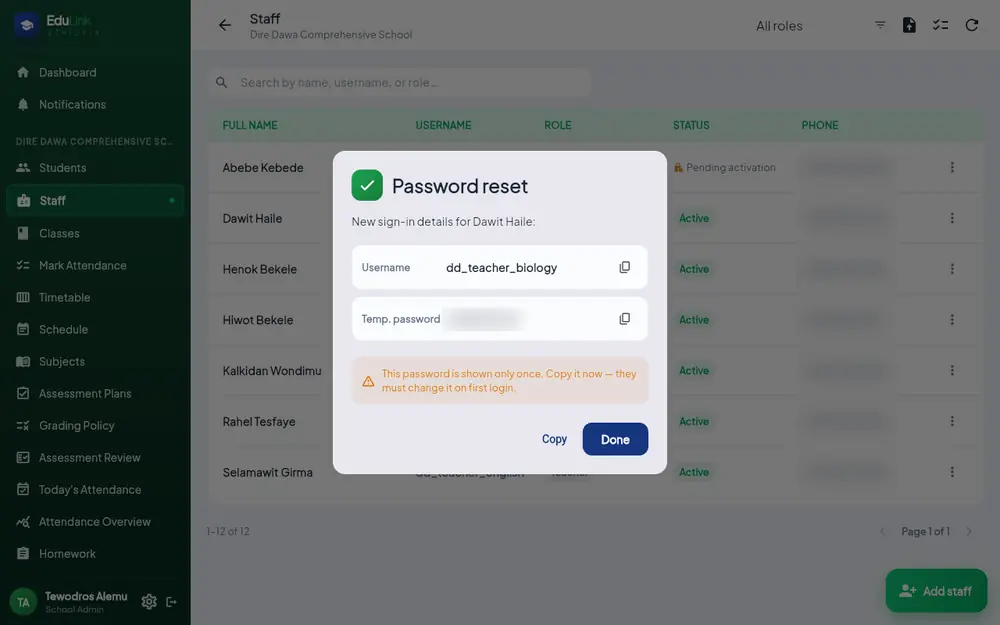
Reset a staff member's password
- Choose Reset password, then confirm.
- EduLink shows the username and a temporary password. It is shown only once: copy it and give it to the person privately.
- Their old password stops working at once. They also get an SMS saying their password was changed.
- At their next sign-in, they must choose a new password.
You cannot reset your own password this way, and a school admin cannot reset another school admin's password. Only the EduLink super admin can.
Forgot your password
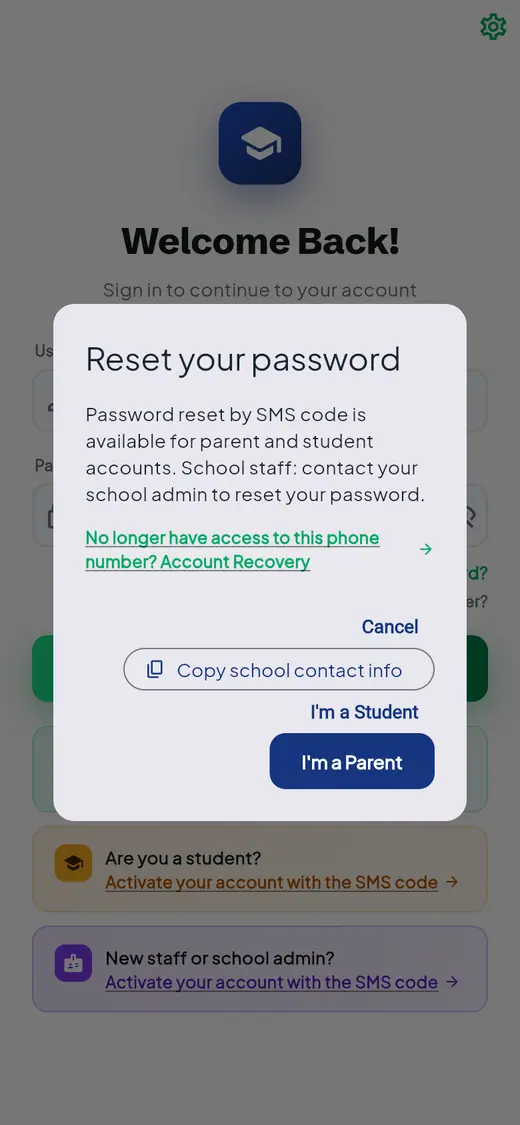
Staff cannot reset a password by SMS. On the sign-in page, Forgot Password? says: "School staff: contact your school admin to reset your password." The Copy school contact info button copies how to reach the school.
- Ask your school admin to reset your password. (School admins: ask the EduLink super admin.)
- They give you a temporary password.
- Sign in with your username and the temporary password.
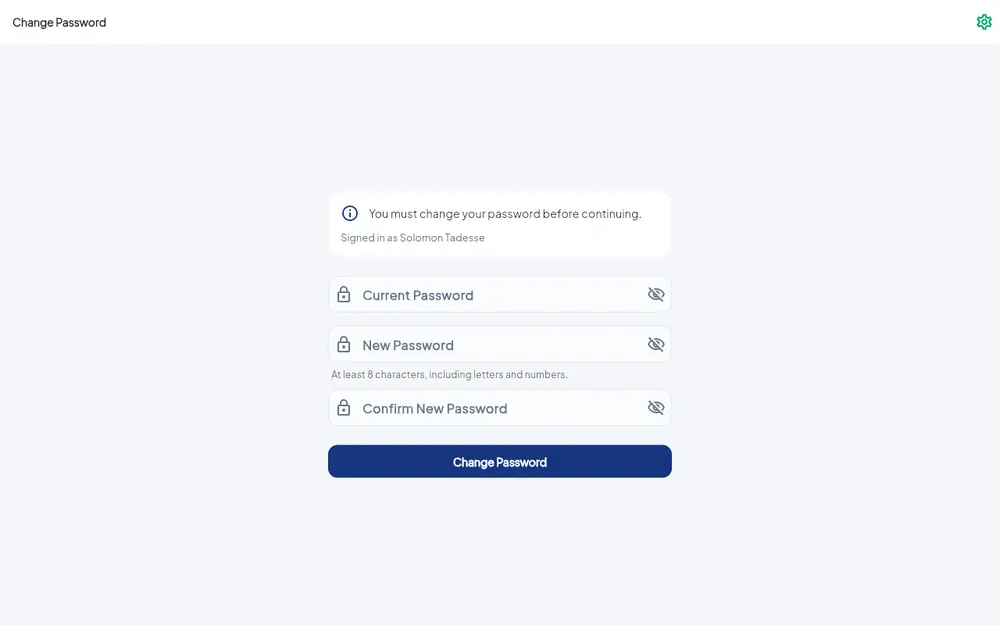
- EduLink shows "You must change your password before continuing." Type the temporary password as Current Password, then your new password twice, and click Change Password.
To change your password at any time, click your name at the bottom of the menu.
Sign out safely
- On a computer: click the exit arrow at the bottom of the left menu, next to your name.
- On a phone: tap the menu (three lines), then the exit arrow at the bottom.
- You are signed out when you see Welcome Back! again.
Always sign out of a shared office or staff-room computer. Your account can see student and family information.
If something goes wrong
My activation code expired or never arrived
Ask your school admin to choose Resend activation code for you on the Staff page. Check that they have your correct phone number.
I forgot my username
Sign in with your phone number instead, or ask your school admin: usernames are shown on the Staff page.
I am a teacher but My Classes is empty
Your school admin has not given you a teaching assignment yet. See teaching assignments.
The register says the class "isn't scheduled then"
The class is not on the timetable for that date and period. Check the date and period at the top of the register. If the timetable is wrong, ask your school admin.
I need to change attendance for an earlier day
Teachers can only mark today. Ask your attendance officer or school admin to correct it.
"phone must be a valid Ethiopian mobile number"
Type the full number, starting with 09… or +2519…. Check that the first 0 was not lost.
A student or parent did not get their SMS
- Parents: on Parents, check the phone number and click Resend.
- Students: check the student is in grade 7 or up and has their own phone on file, then Invite to student portal.
- Students uploaded from a CSV never get an SMS by themselves; see CSV upload.
My account is suspended
You cannot undo it yourself. Ask your school admin.
Pages look crowded on my phone
Use a computer for registrar and admin pages such as Staff and Students. Teacher pages work well on a phone.
Protecting student data
- Use only your own account. Never share your password, even with a colleague.
- Never ask a parent or student for their password or SMS code. EduLink never needs them.
- Give temporary passwords to the person privately, not in a group chat.
- Double-check phone numbers before saving: codes and alerts go to that number.
- Sign out of shared computers.
- Changes are recorded in the school's Audit Log: who changed what, and when.
Getting help
| Problem | Who helps you |
|---|---|
| No account, no code, wrong role, forgot password | Your school admin |
| No classes, wrong timetable | Your school admin |
| Correcting past attendance | The attendance officer or school admin |
| School admin forgot their password | The EduLink super admin |