Parent User Guide
For parents and guardians: how the school registers you, how to activate your EduLink account with the SMS code, how to sign in, and how to follow your child's attendance, homework and report cards from your phone.
Start here: the four steps
The school does the first two steps. You do the rest.
- SchoolAdds youThe school office adds you to your child's record with your phone number.
- SchoolSends your codeAn SMS with a 6-digit code comes to your phone.
- YouActivate, onceEnter your phone, the code and a new password. Only one time.
- YouSign inFrom then on, sign in with your username or phone and your password.
Welcome to EduLink
EduLink is the online system your child's school uses for classes, attendance, homework and report cards. The parent portal is your own page in EduLink. You open it in the web browser on your phone or a computer. There is no app to install.
What you can do in the parent portal
You can see your child's information, but you cannot change marks or attendance. Only teachers and school staff can do that.
If the school has your phone number, EduLink sends you an SMS when your child is marked absent or late, even before you activate. See SMS alerts.
Before you start
- Your mobile phone number, given to your child's school. Your SMS and your account use this number.
- The SMS from EduLink with your 6-digit activation code.
- Internet on your phone or a computer, and a web browser such as Chrome.
- Your region's EduLink address. For Dire Dawa it is dire.edulinkschool.com. The link in your SMS always opens the right one.
Never share your password or SMS code with anyone. School staff will never ask for them.
How the school registers you
You cannot register yourself. The school office (registrar) adds you as a parent or guardian of your child. Your phone number is the key: EduLink uses it to find you, send your code and sign you in.
Way 1: when your child is registered
The registrar types your name and phone number in the Guardian part of your child's form. The SMS with your code is sent as soon as they save.
Way 2: a list of many families (spreadsheet)
The school uploads a list with parents' names and phone numbers. You get your SMS automatically, the same as Way 1. (This is different from students, who get nothing until the school adds their own number.)
Way 3: invited later
If the school added you without a phone number, or your code expired, the school opens Parents & Guardians and taps Send invite or Resend. A new SMS comes.
If you already have an EduLink parent account
- Another child at the same school: the school links the child to you. No new code. The child appears on your home page next time you sign in.
- A child at a different school: you get an SMS like "Abel has been added to your EduLink account". Sign in with your usual password. No new code.
The school chooses your language when it adds you (English, Amharic, Afaan Oromoo or Somali). After you activate, you can change it in Settings.
If your name or phone number is wrong, only the school office can correct it. See Getting help.
Activate your account (one time)
The SMS looks like this (it may be in your language):
Your EduLink activation code: ****** Go to https://…/parent-activate and tap 'Activate Parent Account'. Expires in 24 hours.
The code is 6 digits, works only once, and is valid for 24 hours.
- Tap the link in the SMS. The Activate Parent Account page opens with your phone number filled in.
No link? Open your region's EduLink address. On the sign-in page, under Are you a parent?, tap Activate your account with the SMS code. - Check that Phone number is your number.
- Type the 6 digits in 6-digit activation code.
- Choose a username if you want one. Or leave it empty and sign in with your phone number.
- Type a New password (at least 8 characters, with letters and numbers) and the same in Confirm password.
- Tap Activate Account.
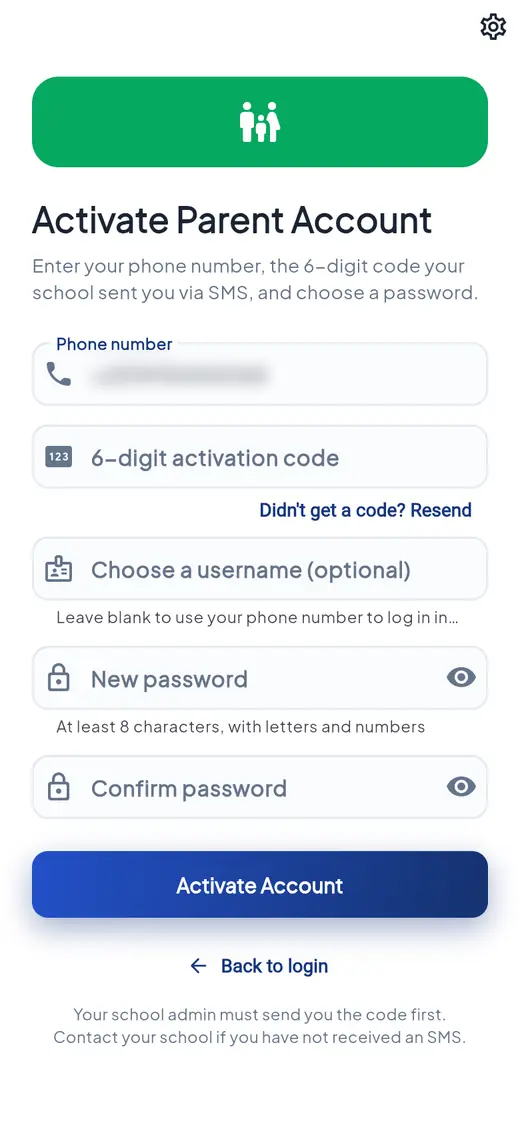
A green message says "You're activated! Signing you in…" and your home page opens with your children. From now on, use Sign in.
If activation does not work
- No SMS after a few minutes: tap Didn't get a code? Resend. A new code replaces the old one. This only works after the school has added you. Still nothing? Ask the school office to check your number.
- "That code is incorrect or has expired": check the 6 digits. After 24 hours, tap Resend.
- "You've already requested a code recently": wait a few minutes, then try again.
- "This account is already activated": go to Sign in, or use Forgot Password?
- "We couldn't find a pending invite for that phone number": check the number. The school may have used a different one.
- That username is already taken: choose another, or leave it empty.
Sign in
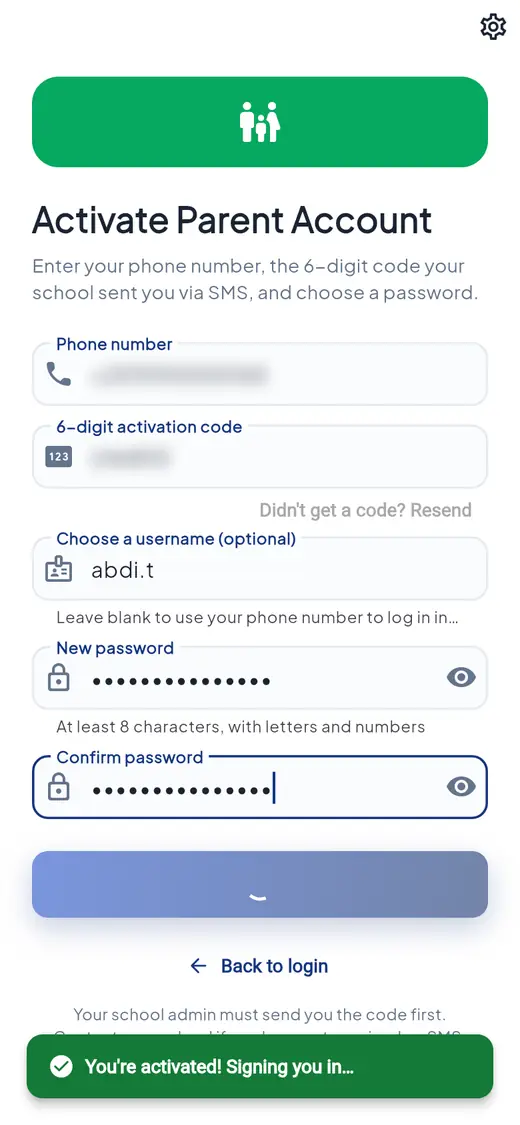
- Open your region's EduLink address, for example dire.edulinkschool.com. You see Welcome Back!
- In Username or Phone, type your username. If you did not choose one, type your phone number.
- In Password, type your password. The eye icon shows what you typed.
- Tap Sign In. Your home page opens.
There is one sign-in page for everyone: parents, students and staff. EduLink knows you are a parent from your account.
The page says "Incorrect username or password." Try again, or use Forgot Password?
Your home page
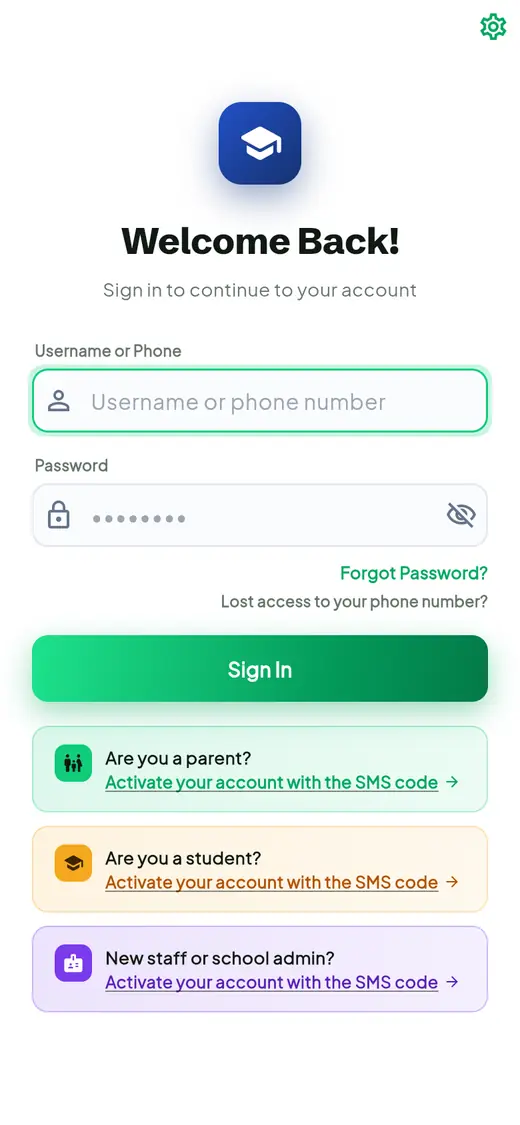
- Recent alerts: the newest news about your children, such as an absence. Tap See all for everything.
- Messages: your conversations with teachers and the school office.
- Your Children: one card for each child, with grade, section and school. Tap View details to open that child's page.
Moving around
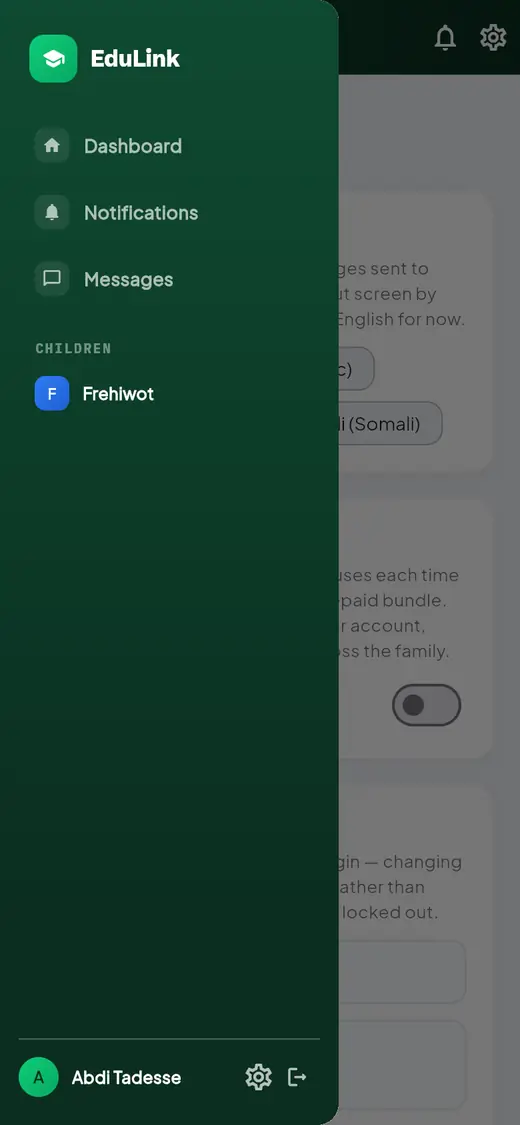
- The menu (three lines, top left) has Dashboard, Notifications, Messages and a shortcut to each child. Your name and the sign-out arrow are at the bottom.
- The bell (top right) opens notifications. The gear changes the language and opens Settings.
- The arrow at the top left of a page goes back.
Pictures in this guide use made-up sample names. Your page shows your own family.
On a phone, the menu slides in from the left. Children are listed under CHILDREN.
Your child's page
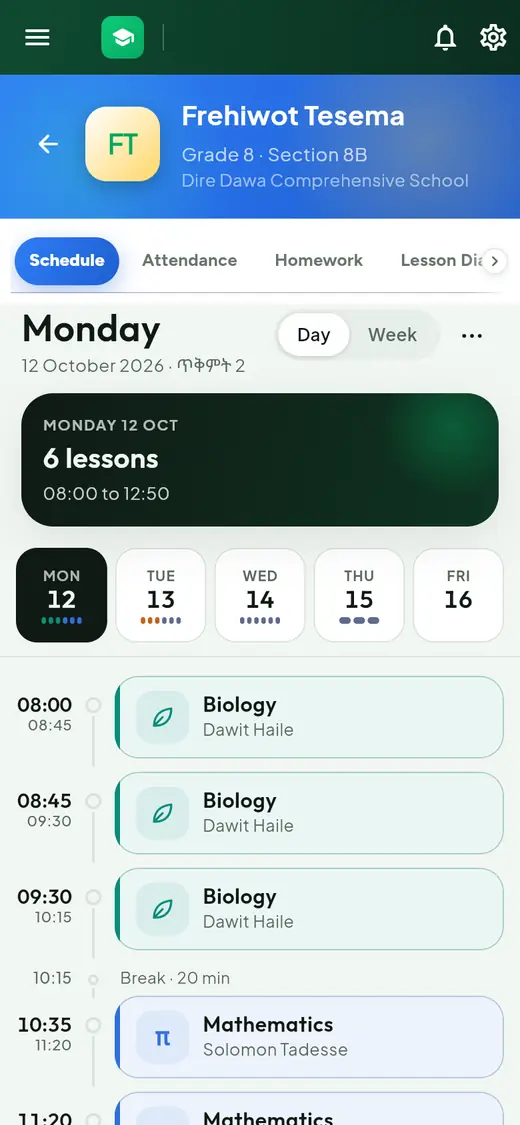
Tap View details on a child's card. The page has tabs along the top: Schedule, Attendance, Homework, Lesson Diary, Behavior, Subjects, Grades, Teachers, Messages and Notifications. Swipe the tabs sideways, or tap the small arrow, to see them all. Tap a topic below to open it.
Schedule: your child's lessons
- Shows each lesson with its time, subject and teacher, and the breaks.
- Tap a day (MON, TUE…) to change day. Tap Week to see the whole week.
Attendance, and giving a reason for an absence
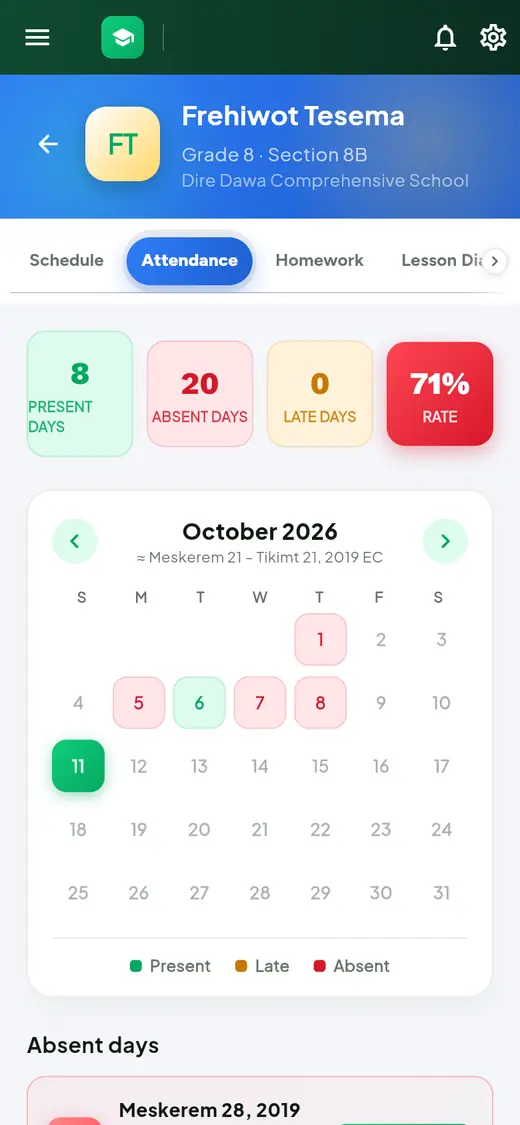
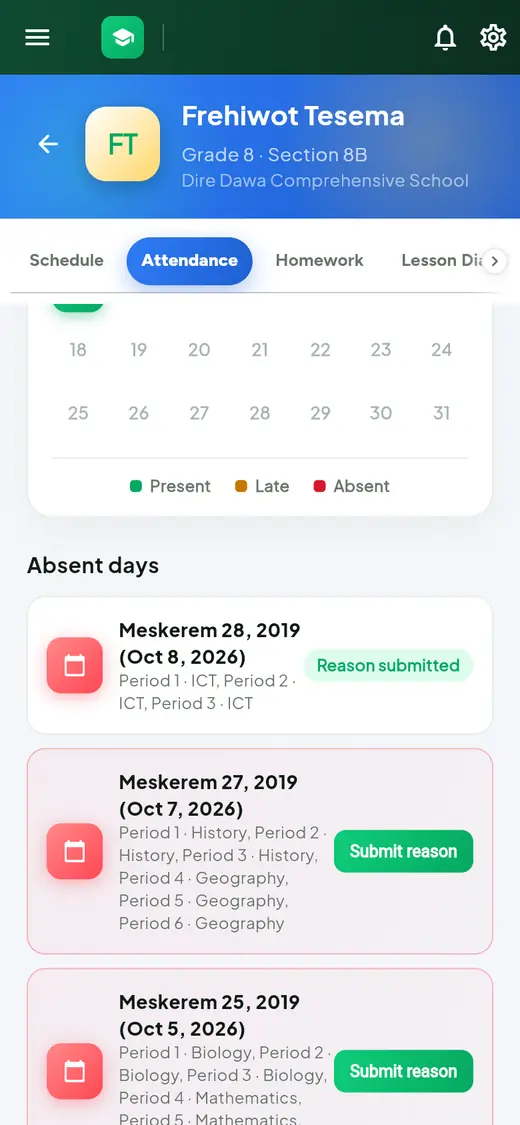
- At the top: Present days, Absent days, Late days and the attendance Rate.
- The calendar colours each school day: green present, orange late, red absent. Use the arrows to change month.
Give a reason for an absence
- Scroll down to Absent days. Each day lists the periods and subjects missed.
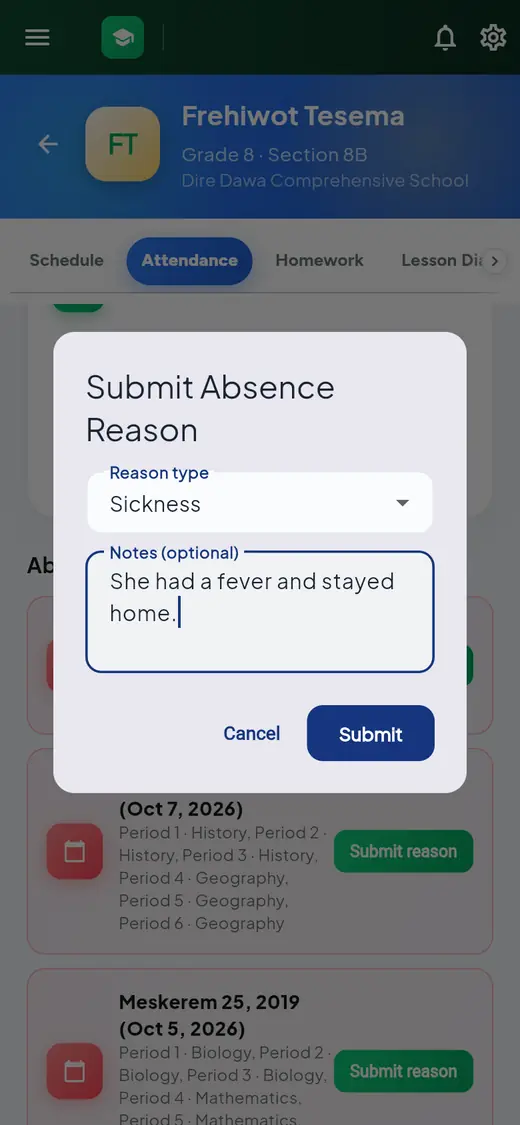
- Tap Submit reason.
- Choose the Reason type: Sickness, Family emergency, Transport problem or Other. Add a short note if you want.
- Tap Submit. The day now shows Reason submitted.
The school reviews your reason. You get a notification: "Reason Approved", or "Reason Rejected" with a request to contact the school.
After you send it, the day shows Reason submitted. Days without a reason still show the green Submit reason button.
Homework and Lesson Diary
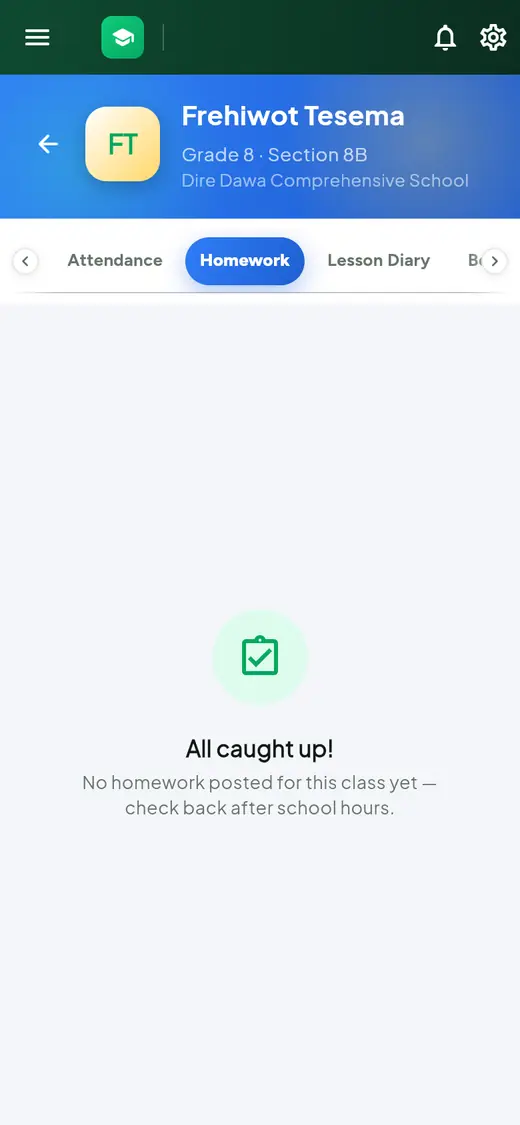
- Homework: what teachers have set, with due dates. "All caught up!" means nothing is posted right now.
- Lesson Diary: what was taught in each lesson, written by the teacher.
Check after school hours: teachers usually post on the day of the lesson.
Grades: report cards
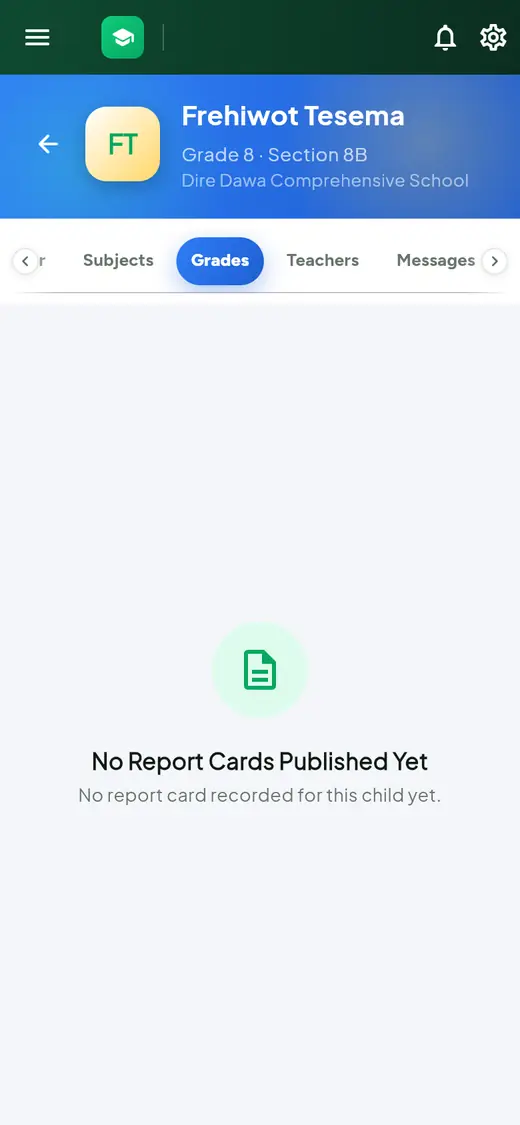
Report cards appear here when the school publishes them, usually at the end of each term. "No Report Cards Published Yet" is normal before then.
If a mark looks wrong, contact the subject teacher through the Teachers tab.
Teachers and Messages: talk to the school
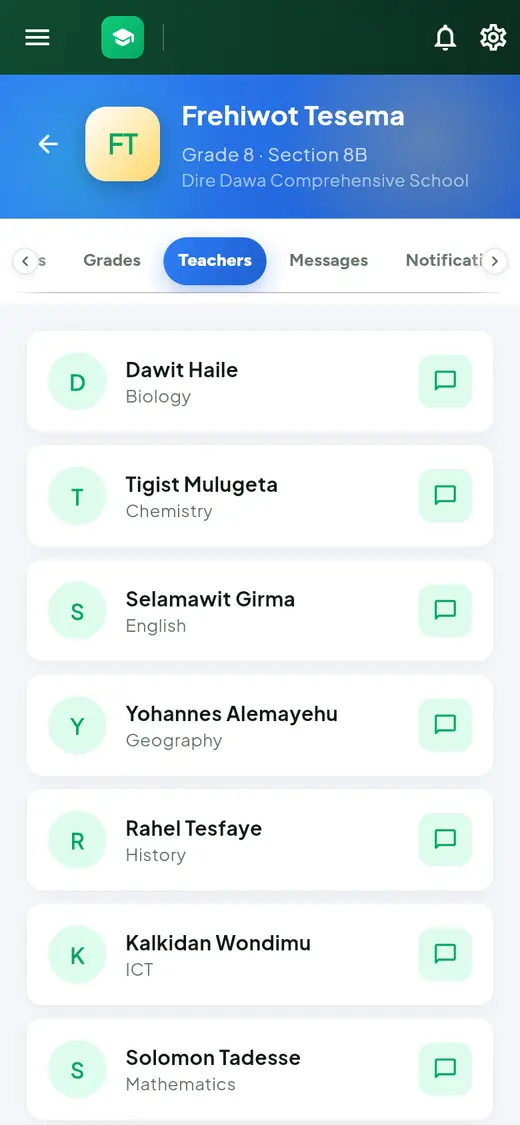
- Open the Teachers tab. You see each of your child's teachers and their subject.
- Tap the message button next to a teacher to start a conversation.
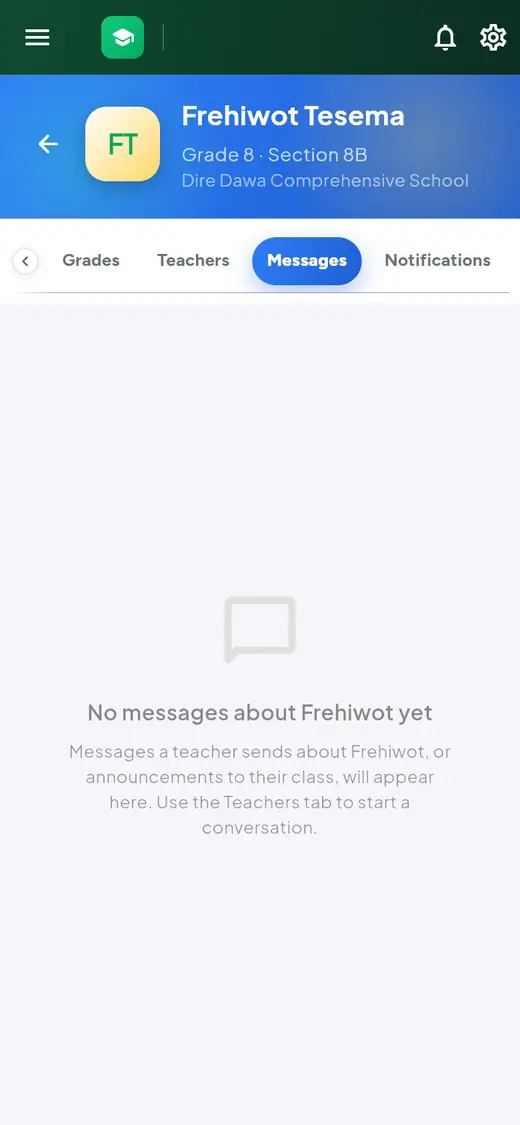
- The child's Messages tab shows messages about this child and announcements to the class.
Before anyone has written about this child, the Messages tab says so and points you to the Teachers tab to start a conversation.
Behavior, Subjects and Notifications
- Behavior: notes teachers have written about your child's behaviour.
- Subjects: your child's subjects.
- Notifications: school updates about this child.
SMS alerts about your child
When a teacher marks your child absent or late, EduLink sends an SMS to every parent or guardian whose phone number is on the child's record:
EduLink: Abel was absent from Mathematics on 2026-10-08. Submit a reason.
- The SMS comes even if you have not activated your account yet.
- If you have activated, the same alert also appears under the bell in EduLink.
- If your child is absent many days in a row, or very often during the term, you get an SMS asking you to contact the school.
- To answer, sign in and submit a reason.
Messages and settings
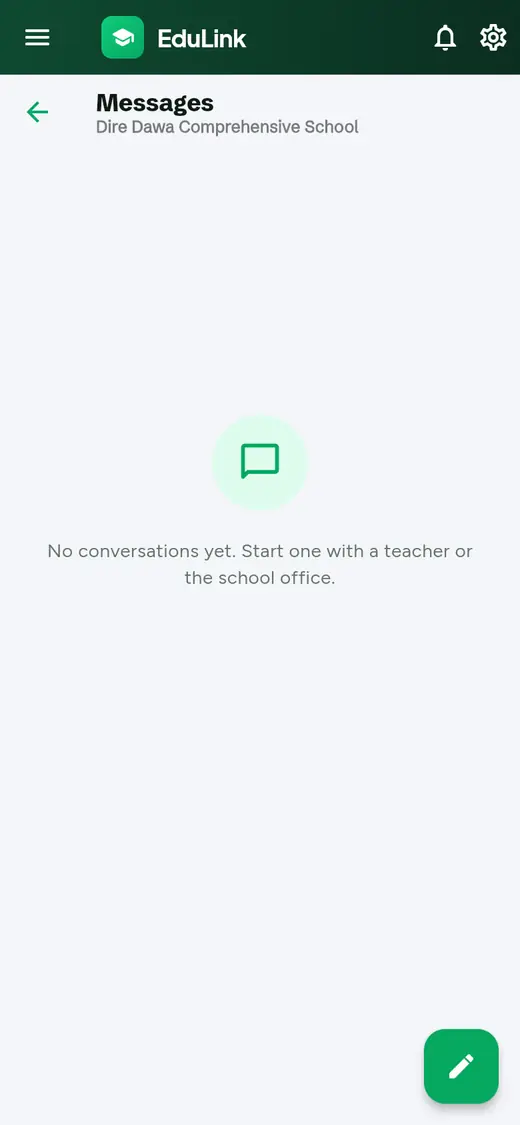
Messages
- Open the menu and tap Messages, or tap Messages on the home page.
- Tap a conversation to read and reply.
- To start a new one, tap the pencil button and choose a teacher or the school office.
Settings
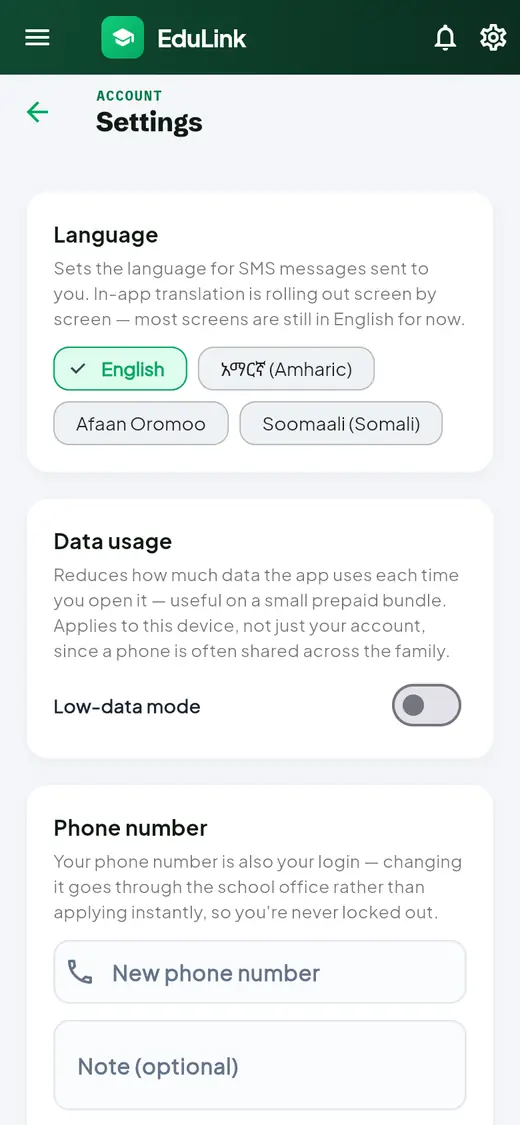
Tap the gear at the top, then Settings.
- Language: English, Amharic, Afaan Oromoo or Somali. It sets the language of the SMS sent to you. Most screens are still in English.
- Low-data mode: uses less internet data. Good for a small mobile bundle. It applies to this phone.
- Phone number: type your new number and tap Send request. The school office checks it first, so you are never locked out.
- Username: change the name you sign in with (once every 30 days).
- Password: tap Change password.
Sign out safely
- Tap the menu (three lines, top left).
- At the bottom, next to your name, tap the exit arrow (Sign out).
- You are signed out when you see the Welcome Back! page again.
If your children or others use the same phone, always sign out when you finish. Otherwise they can see and send messages as you.
Forgot your password or lost your phone
Forgot your password (you still have your phone)
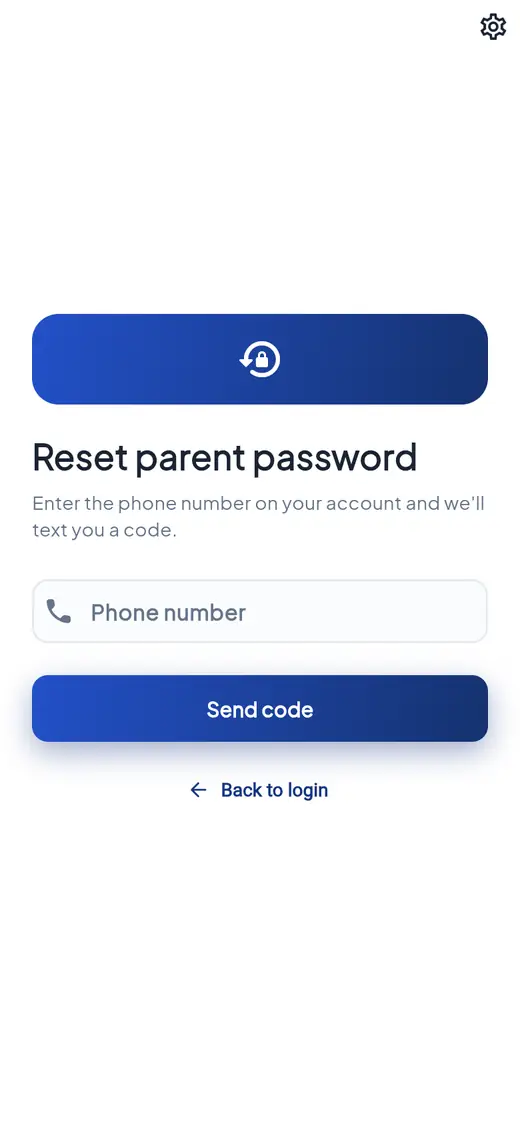
- On the sign-in page, tap Forgot Password?
- Choose I'm a Parent.
- Type the phone number on your account and tap Send code. An SMS brings a 6-digit reset code. It is valid for 30 minutes.
- Type the code and your new password (twice), then tap Reset password.
- Sign in with your new password.
This works only for an account you have already activated.
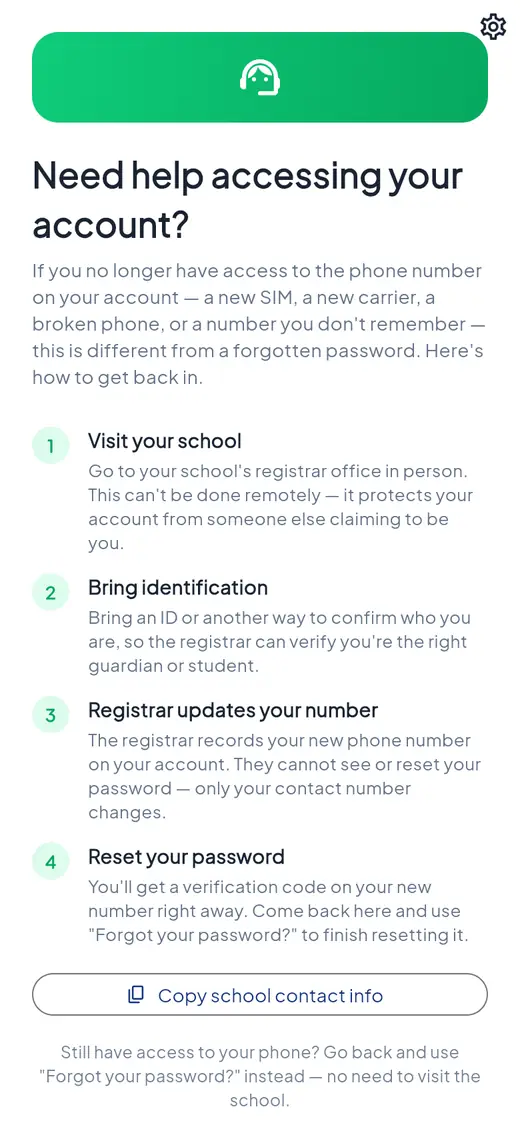
Lost your phone, or changed your number
If you cannot receive SMS on the number in EduLink, you cannot reset the password yourself. This protects your child's information.
- On the sign-in page, tap Lost access to your phone number? to read these steps.
- Go to the school's registrar office in person, with your ID.
- The registrar types your new number. A 6-digit code comes to your new phone: tell it to the registrar so they can confirm. They cannot see your password.
- Then use Forgot Password? with your new number.
If something goes wrong
I did not get an activation SMS
- Wait a few minutes and check your SMS messages.
- On the activation page, tap Didn't get a code? Resend.
- Ask the school office to check your phone number and tap Send invite on the Parents & Guardians page.
My code expired or is not accepted
Codes last 24 hours and work once. Check the 6 digits, then tap Resend for a new code. Only the newest code works.
I got an SMS about a second child but no code
That is normal. You already have an account. Sign in with your usual password: the new child is on your home page.
One of my children is missing from my home page
The school links each child to your phone number. If a child is missing, the school may have used a different number for that child. Ask the school office to link the child to you.
My username or phone number is not accepted
Check for typing mistakes. If you did not choose a username, use your phone number. If you never activated, do activation first.
I forgot my password
Use Forgot Password? and choose I'm a Parent. A reset code comes by SMS.
The absence is wrong: my child was at school
Submit a reason explaining it, or message the teacher of that subject. Only the school can change an attendance mark.
My account is suspended or not active
Suspended accounts can only be turned back on by the school. Ask the school office. If the page says your account is not activated yet, do activation first.
The page does not load, or my internet is slow
- Check that you have internet and mobile data.
- Reload the page. The first visit takes longer.
- Turn on Low-data mode in Settings.
- Try again later, or use Wi-Fi.
Pages are empty
That is normal at first: teachers add homework and lessons over time, and report cards come at the end of term.
Privacy and account safety
- Keep your password secret, also from your children.
- Never share an SMS code. Anyone with your code can take over your account.
- Use only the official EduLink address from your SMS or the school, ending in edulinkschool.com.
- Sign out on shared phones and computers.
- Tell the school office if your phone number changes, so SMS alerts keep reaching you.
EduLink and the school will never ask you for your password or your SMS code.
Getting help
Your child's school helps you with EduLink. Go to the school office, or send a message in EduLink if you can sign in.
| Problem | Who helps you |
|---|---|
| No SMS, wrong phone number, child missing | The school's registrar (school office) |
| Wrong name or personal details | The school office |
| Attendance, homework or marks | The teacher of that subject (Teachers tab) |
| Lost phone, cannot sign in | The registrar, in person with your ID |
| Account suspended | The school office |